
A firewall decides who can reach your server and where your server can connect to. You build it from rules, like "allow port 443 from my office" or "drop this one address", and apply it to the servers in a project. Saved changes apply at once, and the panel, console and SFTP always keep working, so you cannot lock yourself out.
Firewalls belong to a project. A firewall can be applied to any server in the same project, and a server uses one firewall at most. Only the project owner can create and change firewalls. Team members can look at them.
Create a firewall
- Click Manage on your server.
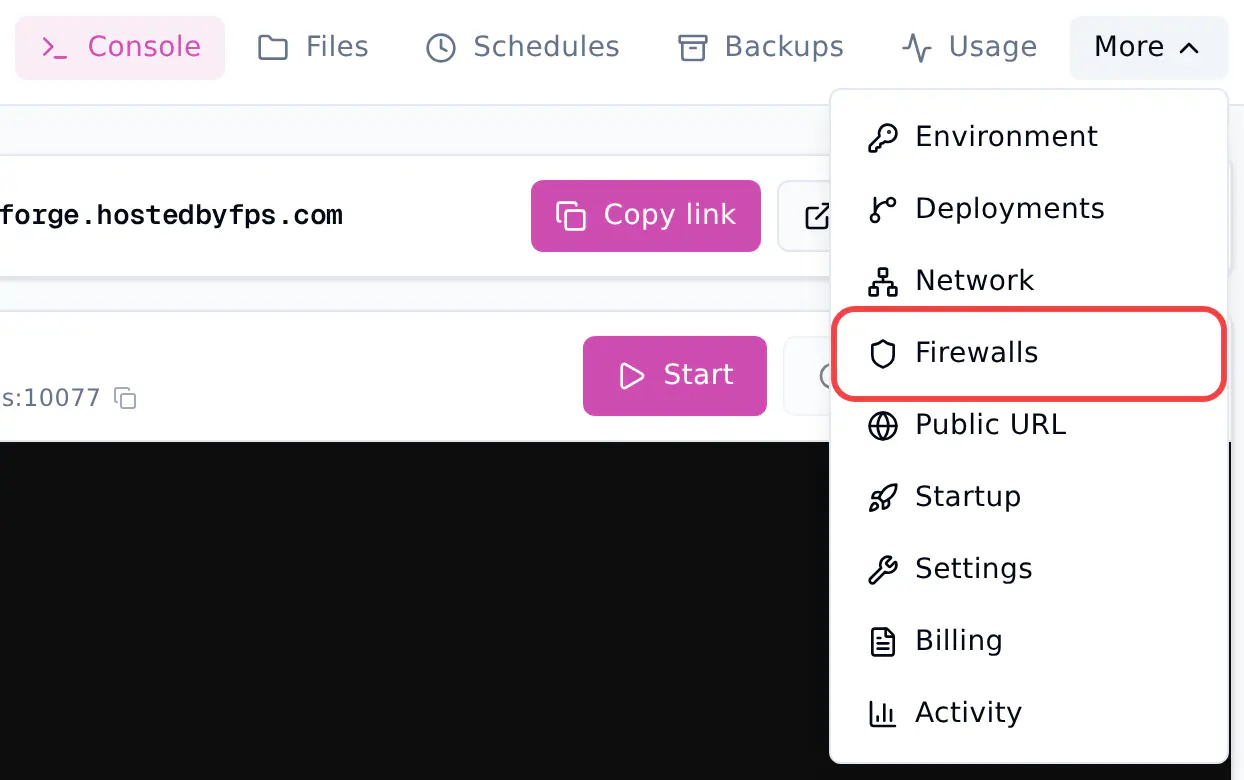
- Click More, then Firewalls. This opens the firewalls of the server's project. You can also open the project and click Firewalls there.
- Click Create firewall.
- Type a name, for example
Office only, and click Create.
Add rules
A firewall has two lists of rules. Inbound rules judge connections to your server. Outbound rules judge connections your server makes.
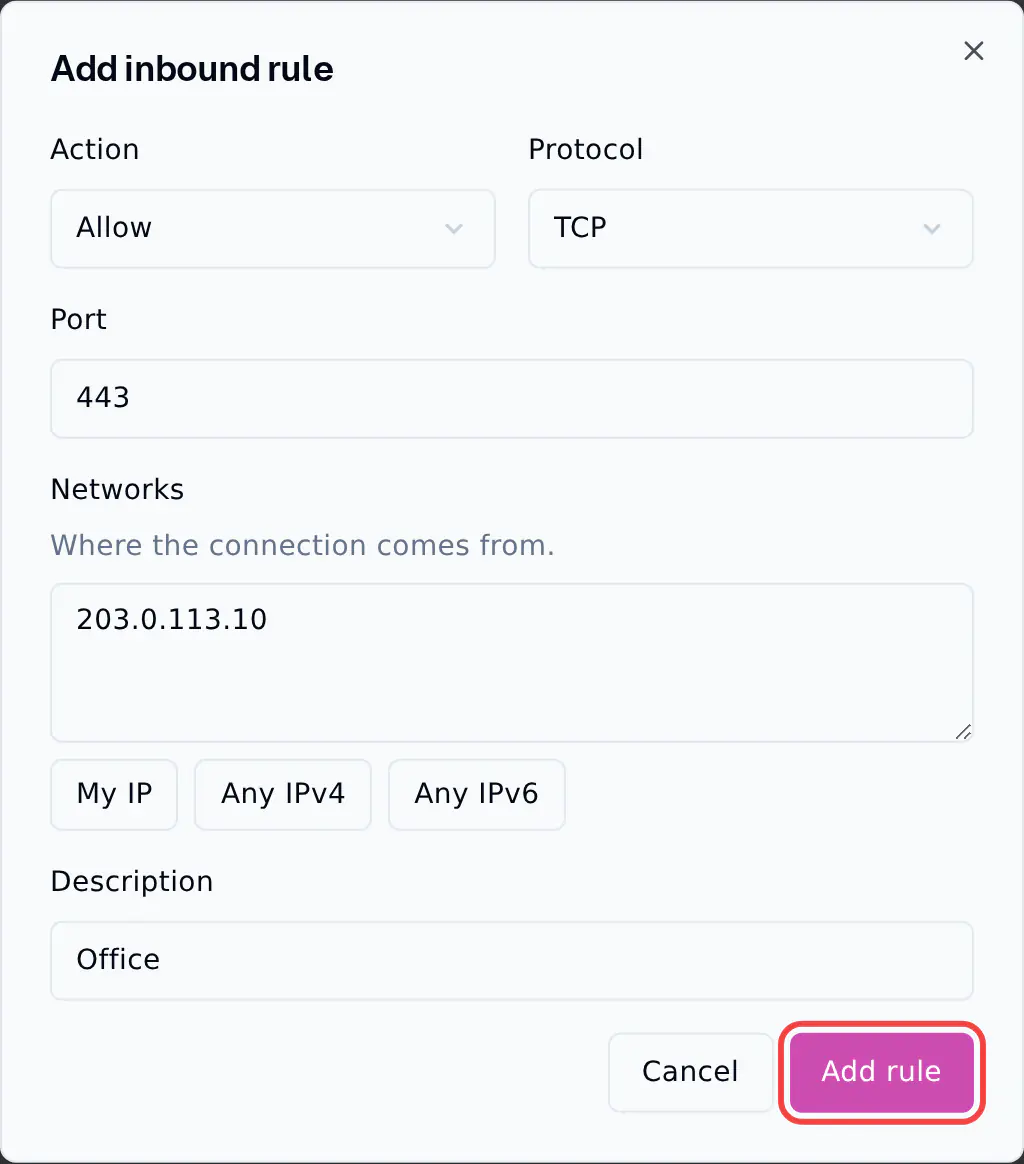
- Click Add rule on the Inbound or Outbound card.
- Choose the Action: Allow or Drop.
- Choose the Protocol: TCP, UDP or Any. Outbound rules can also use ICMP (ping).
- Type the Port: one port like
25565, a range like27015-27020, or nothing for all ports. A rule with protocol Any covers all ports. - Under Networks, type up to 10 addresses or ranges, like
203.0.113.10or203.0.113.0/24. My IP fills in the address you use right now. Any IPv4 and Any IPv6 mean every address. - Optionally type a Description, so you remember what the rule is for.
- Click Add rule.
Which port to use
Use the port the other side connects to:
- A game server or another direct port: the port in your server's address. For
mango.fps.ms:25565, that is25565. - A Public URL or your own domain:
443. - A PostgreSQL database:
5432. - Outbound rules: the port of the service your server connects to, for example
443for a website.
Order and "Everything else"
- Rules are checked from top to bottom, and the first rule that matches decides. Use the arrows next to a rule to move it up or down.
- When no rule matches, Everything else decides: Allow or Drop.
- To let only some people in, add Allow rules for them and set Everything else to Drop.
- To keep a few addresses out, add Drop rules for them and leave Everything else on Allow.
Outbound Drop
If you set Everything else to Drop on the Outbound card, your server cannot reach game logins, updates or Discord unless a rule allows them.
Save your changes
Adding or changing a rule only changes the page. Nothing happens on your server until you click Save changes. While something is not saved yet, Unsaved changes shows next to the button. If you leave the page before you save, your changes are lost.
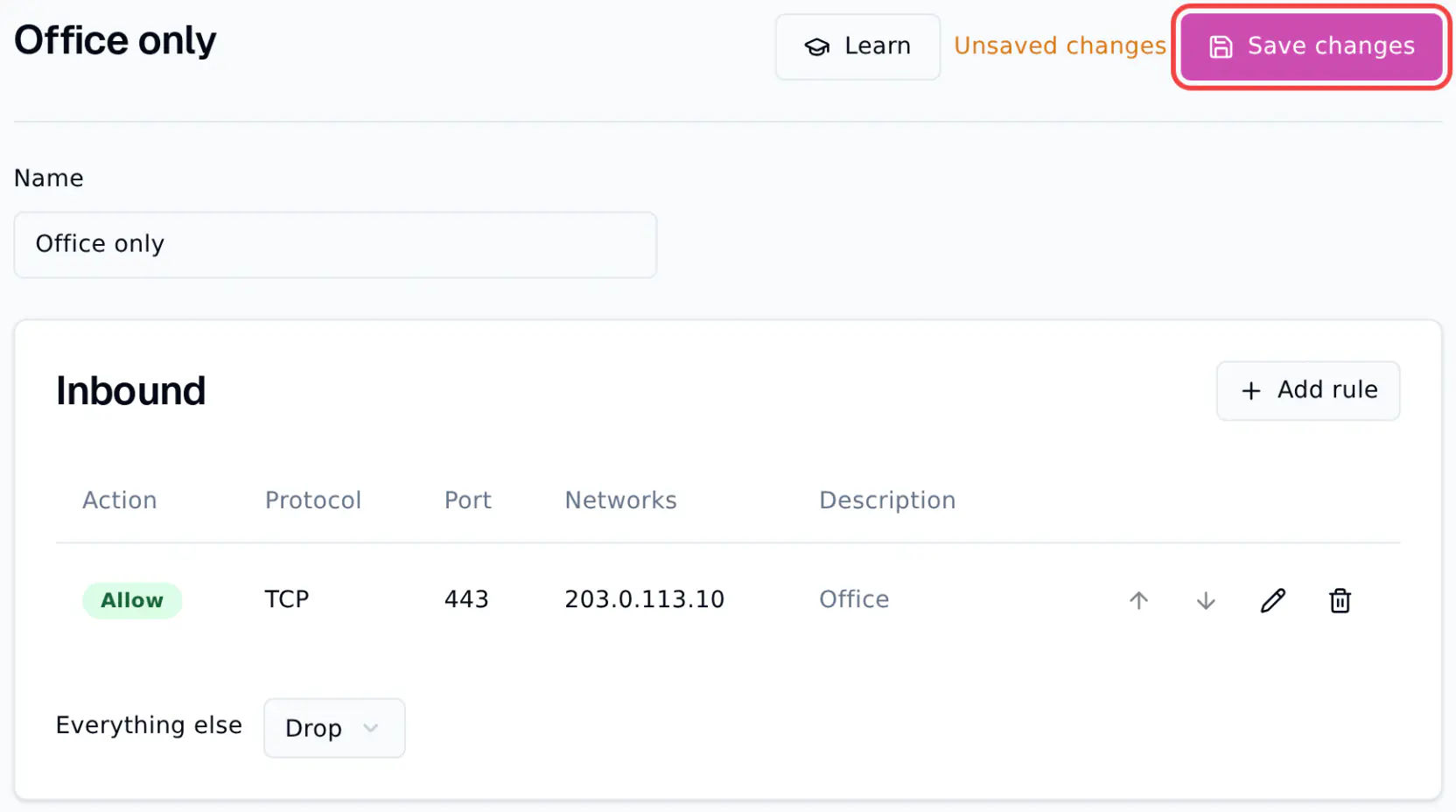
Saved changes apply at once to every server that uses the firewall, also to connections that are already open. Only a PostgreSQL session or a WebSocket that is already open stays open until it closes.
Apply the firewall to a server
- On the Applied to card, find your server under Add a server.
- Click Apply.
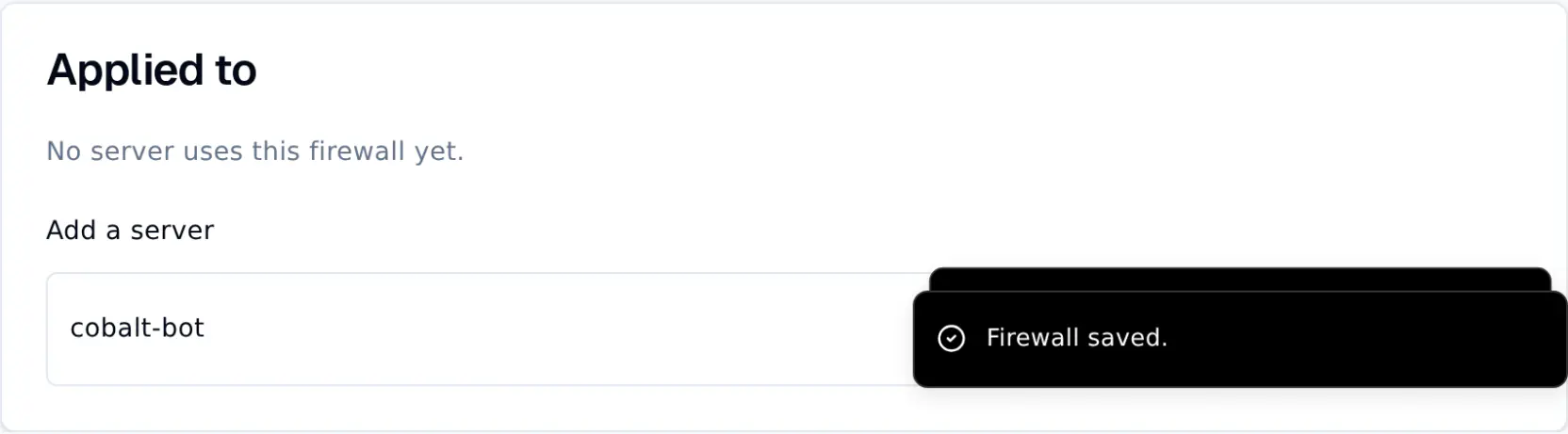
The server now shows one of these labels:
| Label | Meaning |
|---|---|
| Active | The firewall is filtering this server. |
| Applying | The firewall is being set up. This takes a few seconds. |
| Not active | The firewall is applied, but it is not filtering this server right now. |
| Could not apply. Retrying. | Something went wrong. FPS.ms tries again by itself. |
| Not available on this server's node | Firewalls do not work on the machine this server runs on. |
To take the firewall off a server, click the X next to it.
What a blocked visitor sees
- On a web address (a Public URL or your own domain): an Access Blocked page that says the server does not allow connections from their network.
- On a game or database port: no answer at all. The connection times out.
- On a sleeping server: a blocked player does not wake it up.
What a firewall never blocks
- The panel, console, file manager and SFTP.
- DNS lookups from your server.
- Ping to your server's address.
A firewall can only make things stricter. It cannot open a port your server does not have.
Good to know
- Game and database ports work over IPv4 only. IPv6 networks in a rule only apply to web addresses.
- My IP only shows when you use the panel over IPv4.
- If your own domain goes through a CDN, rules see the CDN's addresses, not your visitors'.
- Home internet addresses can change. If you suddenly see the Access Blocked page on your own server, check your address with My IP and update the rule.
- A project can have 20 firewalls. A firewall can have 50 rules, with 10 networks per rule and 100 networks in total.
- To delete a firewall, take it off all its servers first, then click Delete firewall.