
The seed is the number Minecraft uses to generate your world. Two worlds with the same seed have the same terrain, so you can share your seed with friends or build the same world again later.
Find your server's seed
- Go to panel.fps.ms and open your server. The Console page opens.
- Your server must be online. If it is offline or asleep, click Start and wait until the console shows
Done. - Click the command box under the console and type
seed. Do not put a/in front of it.
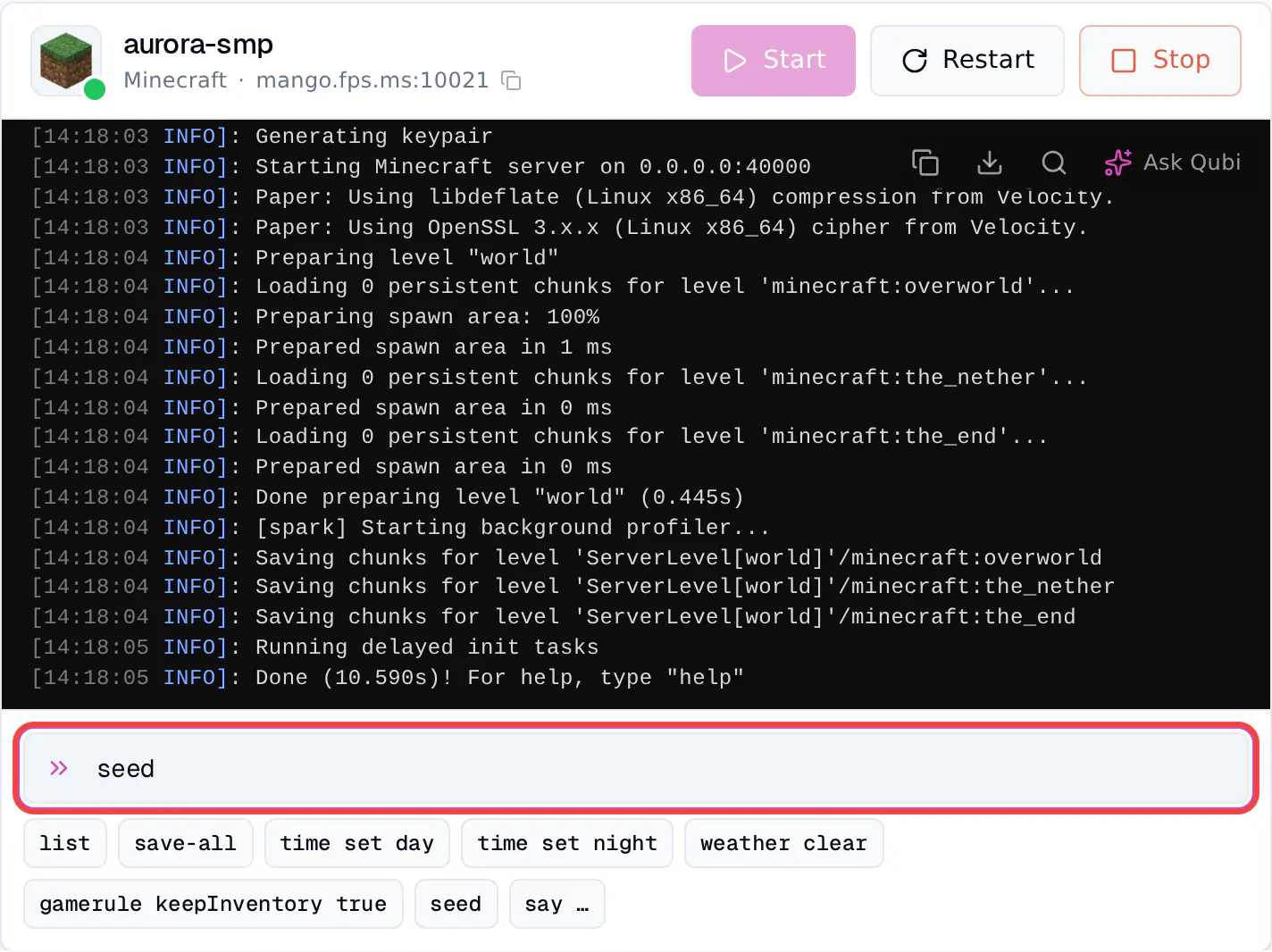
- Press Enter.
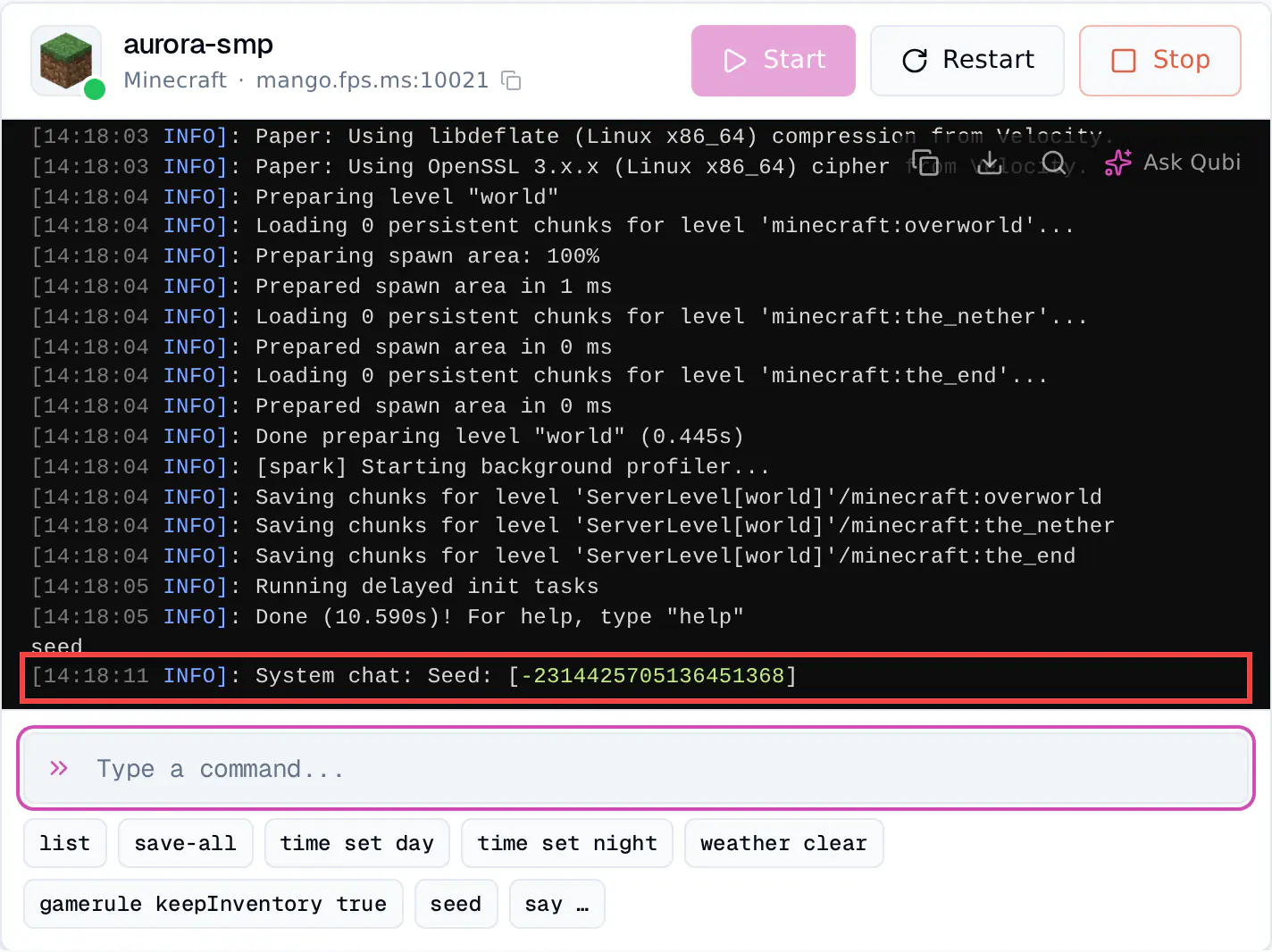
- The console shows a line with
Seed:and a number in brackets, for exampleSeed: [-2314425705136451368]. That number is your seed. Copy everything between the brackets, including the-if there is one.
Tip
The seed button under the command box does the same thing in one click. The console runs commands as the server itself, so you do not need to be in the game.
Why not look in server.properties?
The level-seed line in server.properties is often empty. Empty means Minecraft picked a random seed when it created your world, so the file does not tell you the seed. The seed command always shows the real one.
Start a new world with a different seed
Minecraft only uses the seed when it creates a new world. If you only change level-seed, your server keeps loading the world it already has, and nothing changes.
So you also give the new world its own folder with level-name. Your server then creates a new world from your seed, and your old world stays on the server as it is.
Make a backup first
Save a copy of your world before you change anything, for example with Google Drive backups.
- Open your server and click Files.
- Click
server.propertiesto open it. - Find the line
level-seed=and type your seed after the=, for examplelevel-seed=3257840388504953787. - Find the line
level-name=worldand changeworldto a new name, for exampleworld2. Pick a name that is not already a folder on your server.
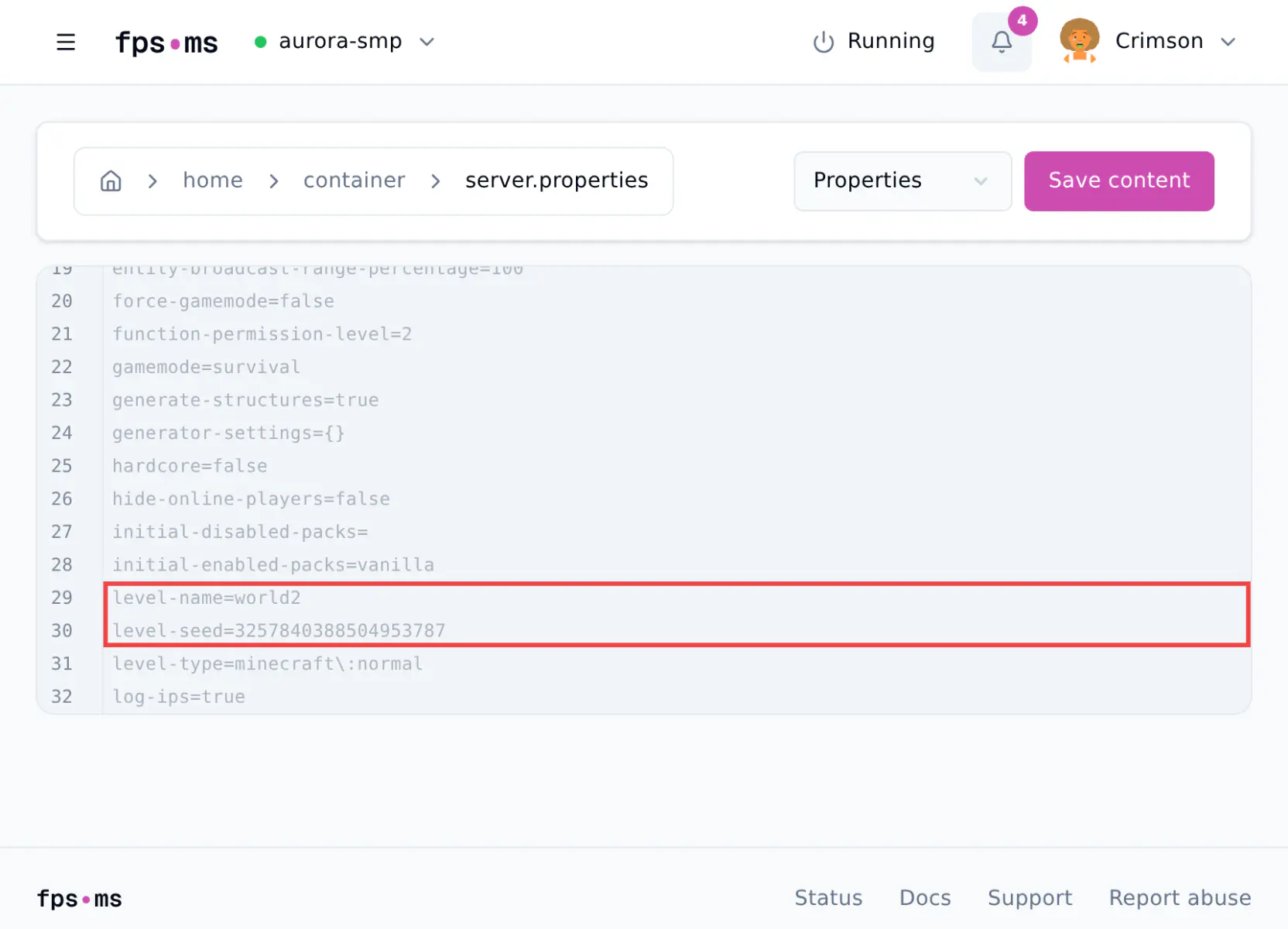
- Click Save content.
- Click Console in the top bar, then click Restart. If your server is off, click Start.
Your server now creates the new world. The first start takes a little longer than usual. When the console shows Done, type seed to check that your new seed is in use.
A seed can be a number or a word
If you use a word, like crimsoncrew, Minecraft turns it into a number. The seed command then shows that number.
Seeds and Minecraft versions
When Minecraft changes how worlds are generated, the same seed can make different terrain. If you copy a seed from a website, check which Minecraft version it was made for.
Want the new world to be flat or amplified? See How to change world type. For the other settings in this file, see Minecraft server.properties explained.
Go back to your old world
- Open
server.propertiesagain. - Change
level-nameback to the old name, for exampleworld. - Click Save content and restart your server.
Your server loads your old world again. You do not need to change level-seed back, because a world that already exists keeps its own seed.
The new world also stays in its own folder, so you can switch between your worlds by changing level-name. Every world folder uses disk space on your server.