
A whitelist decides who can join your server. When it is on, only the players on the list can join. Everyone else gets a message that they are not whitelisted.
You manage the whitelist on the Players page of your server. You do not need to type commands or edit files.
Open the Players page
- Go to panel.fps.ms and open your server.
- In the top bar, click More, then click Players.
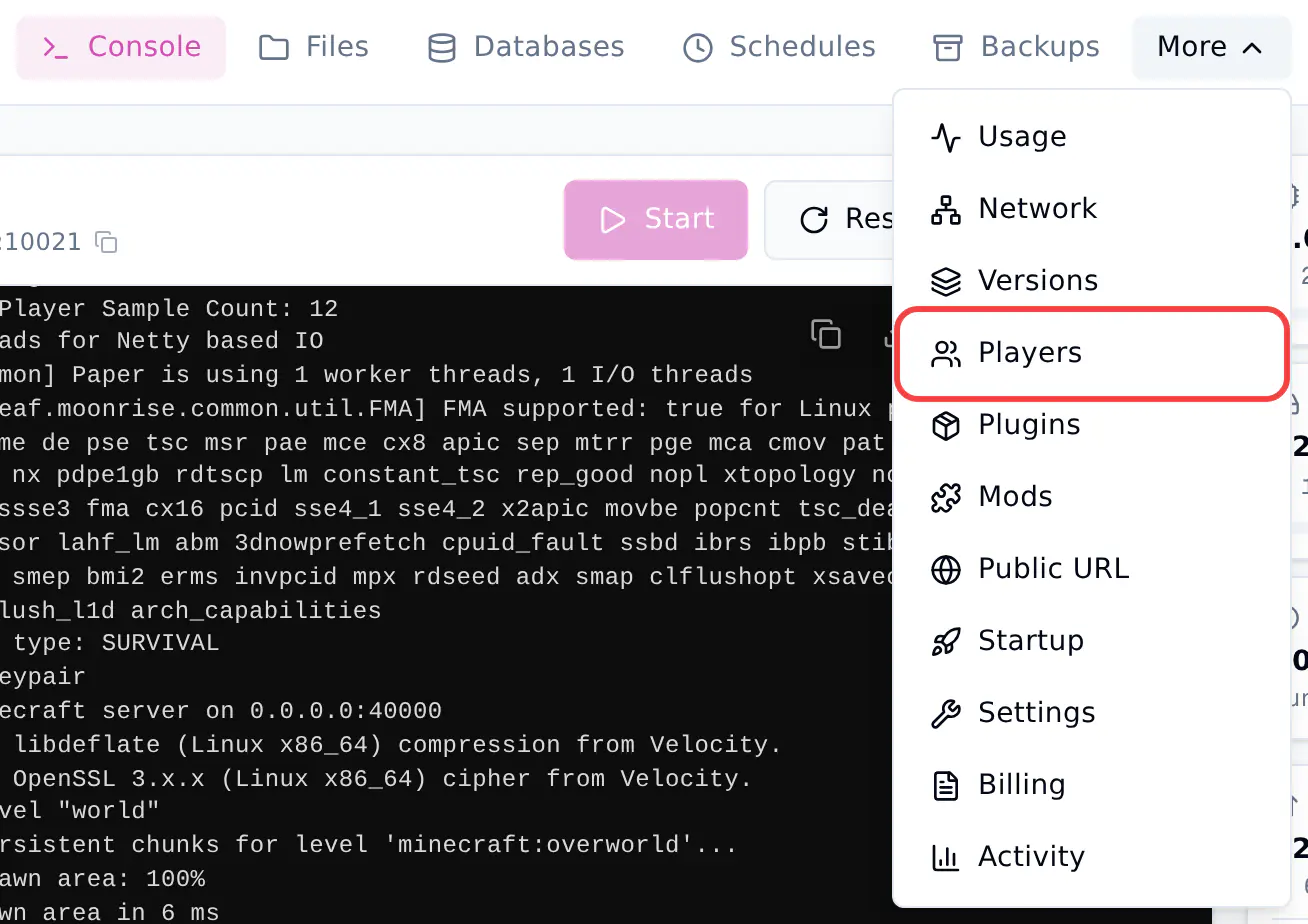
- Click the Whitelist tab.

Server is sleeping?
The player lists are read from files on your server. If your server is asleep, click Wake server and load players first.
Add a player
- Type the player's Minecraft name in Player name. Use their Java Edition name, for example
Emma. - Click Add to whitelist.
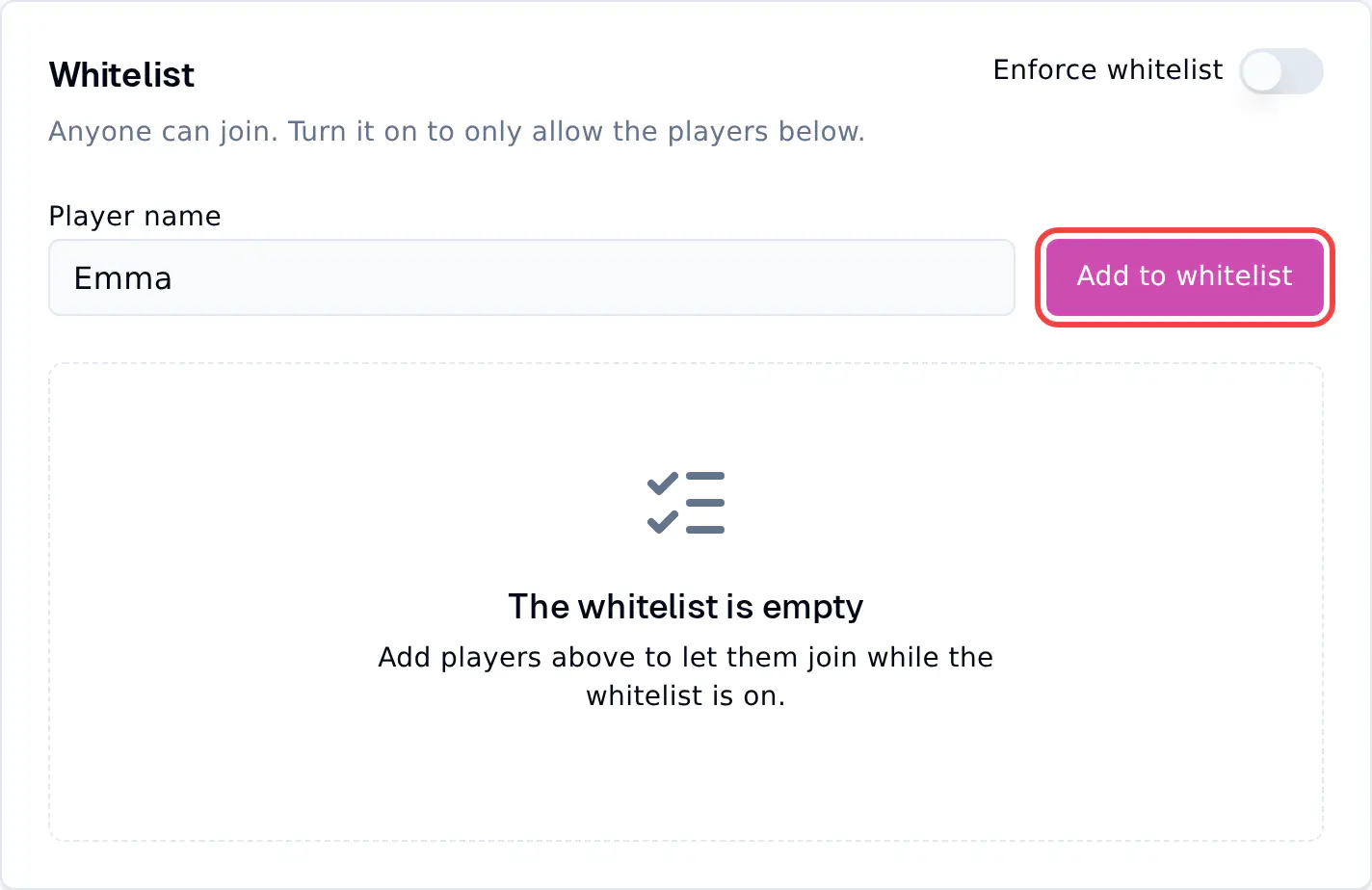
The player now shows in the list. Repeat this for every player you want to let in, and do not forget to add yourself.
Tip
The panel checks the name with Minecraft, so a name that does not exist is refused. Check the spelling if the panel says no.
Turn the whitelist on
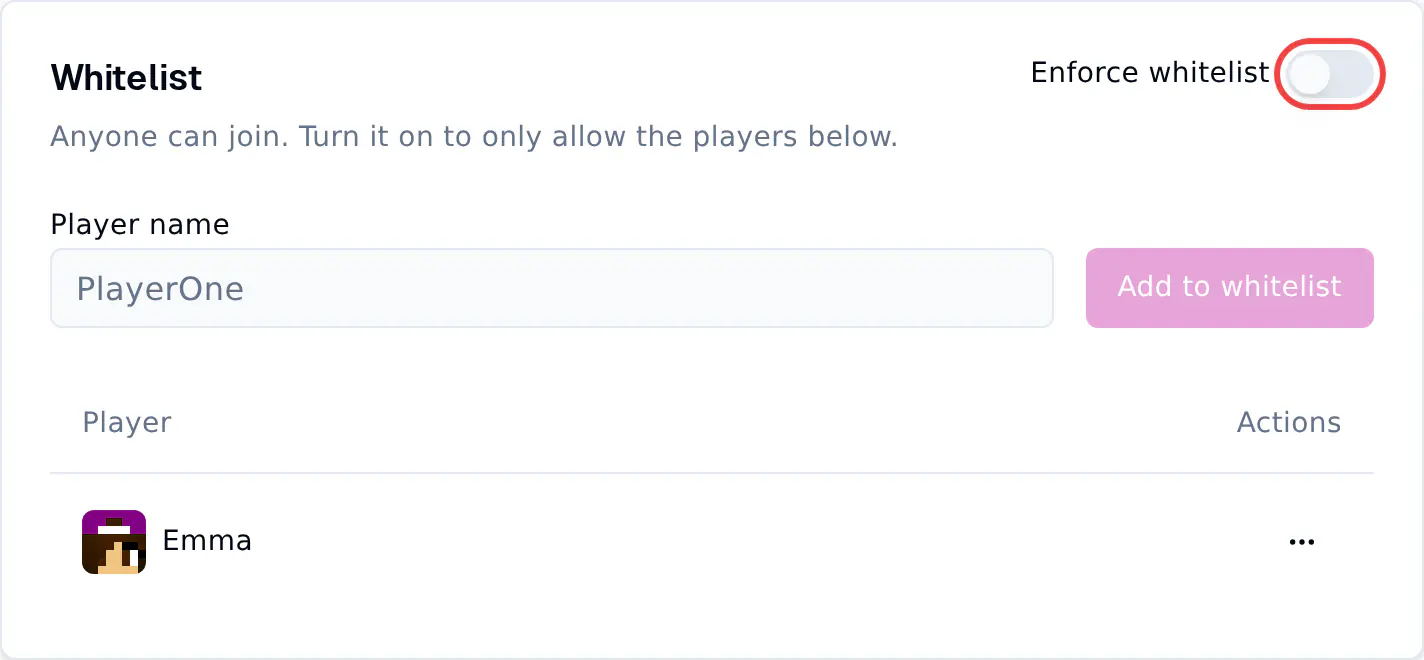
The list only does something when the whitelist is on.
- Click the Enforce whitelist switch at the top of the card.
- The card now says Only the players below can join this server.
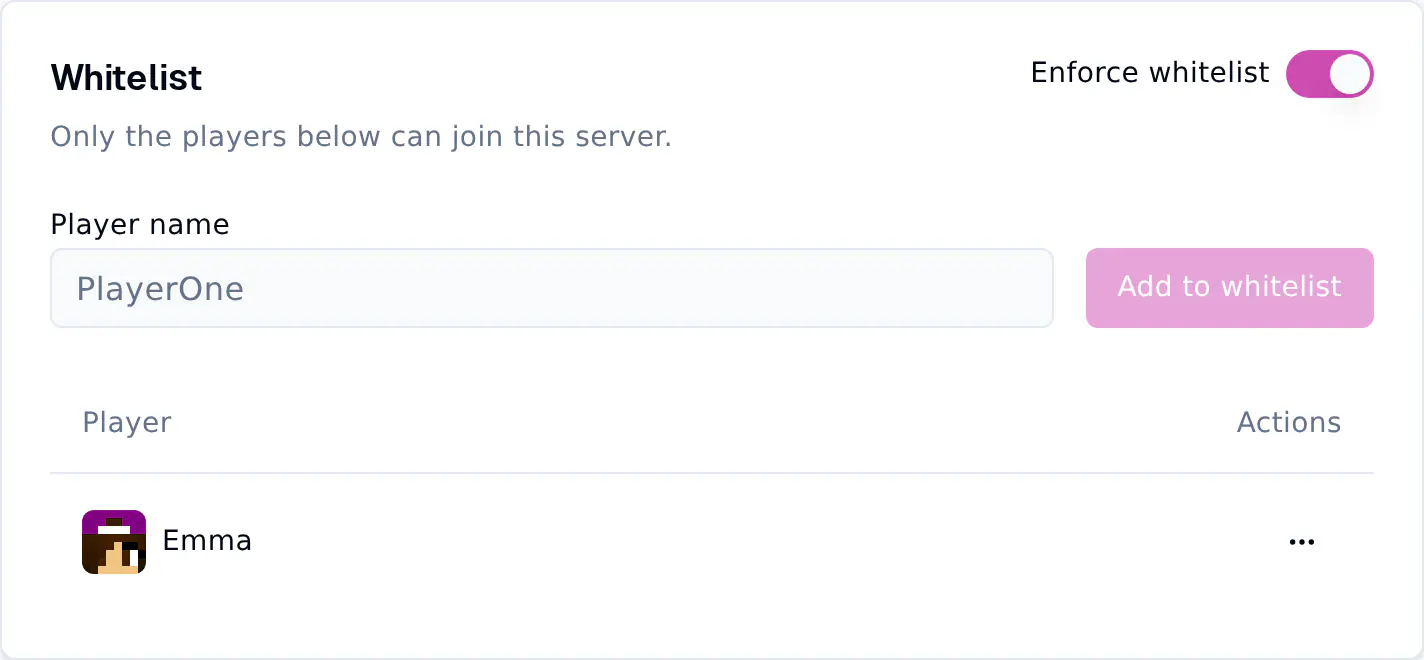
The change works right away. You do not need to restart your server.
Remove a player
- Click the ... button next to the player.
- Click Remove from whitelist.
To let everyone join again, click the Enforce whitelist switch so it turns off. Your list stays saved for later.
Use the console instead
You can also manage the whitelist from the Console page. Type these commands without a /:
| Command | What it does |
|---|---|
whitelist add Emma |
Adds Emma to the whitelist |
whitelist remove Emma |
Removes Emma from the whitelist |
whitelist on |
Turns the whitelist on |
whitelist off |
Turns the whitelist off |
whitelist list |
Shows everyone on the whitelist |