
To join your Terraria server you need three things from the panel: its IP address, its port and, if it has one, its password. Then you join from Terraria with Join via IP. This works on PC and on mobile.
Find your server's IP and port
- Go to panel.fps.ms. Your dashboard lists your servers.
- Find your Terraria server. If it does not show Online, click Start and wait until it does.
- Click Manage.

- The Console page opens. Under your server's name you see its address, for example
mango.fps.ms:10051.

Terraria asks for the IP and the port separately. Split the address at the :.
| Part | Example | Where you type it in Terraria |
|---|---|---|
| IP address | mango.fps.ms |
Enter Server IP Address: |
| Port | 10051 |
Enter Server Port: |
Your address is your own
The first part is the name of the machine your server runs on, so yours may not start with mango. The port is not Terraria's usual 7777. Always use the address from your own Console page.
Check your server's password
Your server only asks for a password if it has one. Where you find it depends on the server type you picked:
| Server type | Setting on the Startup page | Default |
|---|---|---|
| Terraria Vanilla | Password | Empty, so no password |
| tModLoader | Server Password is shown, but your server does not use it | No password |
| TShock | No password setting | No password. TShock uses in-game accounts instead, see Setup your TShock server |
The steps below are for Terraria Vanilla.
To see or change the password:
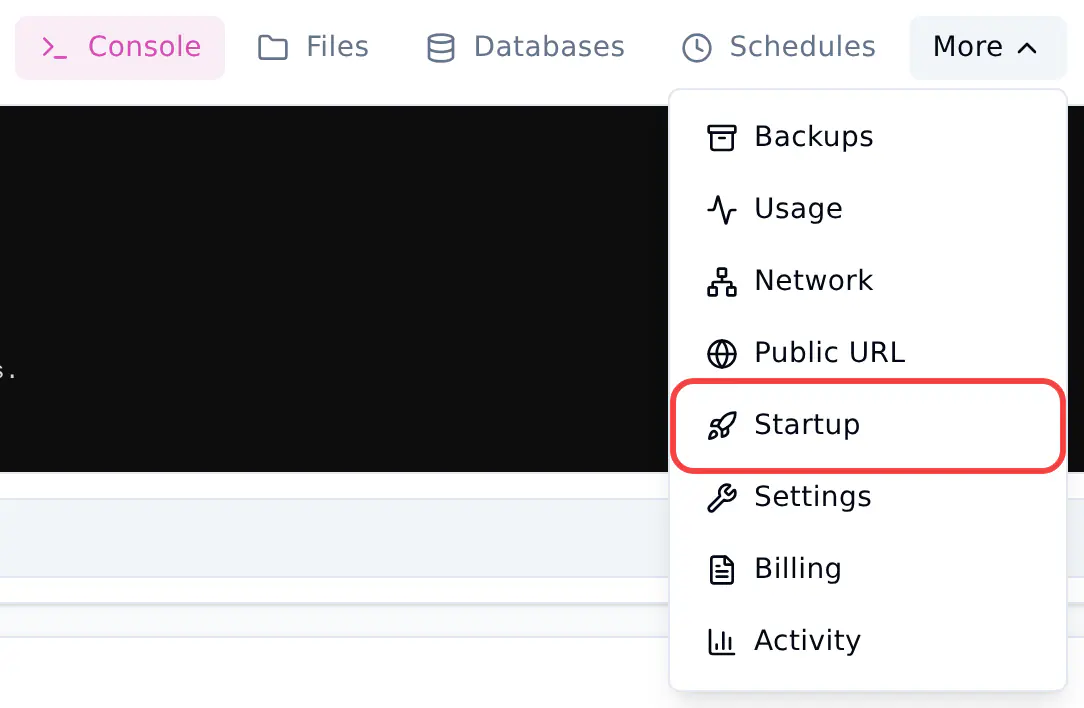
- On your server's page, click More in the top bar.
- Click Startup.
- Scroll to Password. This box holds your server's password.
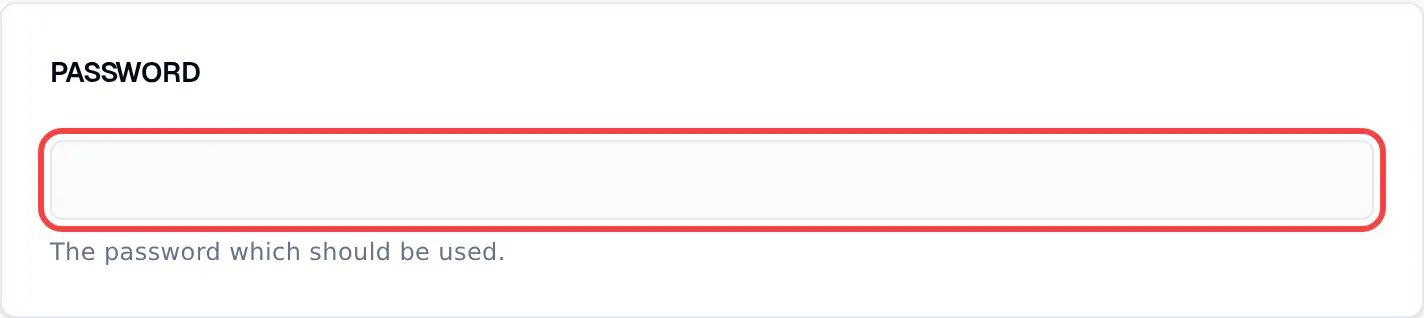
- To set or change the password, type it in the box. The panel saves it by itself a moment after you stop typing. There is no save button.
- Click Console in the top bar, then click Restart. Your server only reads the new password when it starts.
Removing the password
Empty the box and restart your server. Players can then join without a password.
Join from Terraria on PC
- Start Terraria and click Multiplayer.
- Click Join via IP.
- Pick the character you want to play with.
- At Enter Server IP Address:, type the IP part of your address, for example
mango.fps.ms. Click Accept. - At Enter Server Port:, type the port, for example
10051. Click Accept. - If your server has a password, Terraria shows Enter Server Password:. Type it and click Accept.
Terraria saves the servers you played on under Join via IP, so next time you can pick your server from that list.
Joining a tModLoader server
Open the tModLoader client instead of plain Terraria, then follow the same steps. To get the same mods as your server, see Setup your tModLoader server.
Join from Terraria on mobile
- Open Terraria and tap Multiplayer.
- Pick the character you want to play with.
- Tap Online.
- Add your server: type the IP part of your address (for example
mango.fps.ms) and the port (for example10051). - Tap your server in the list to join. If it has a password, type it when the game asks.
Consoles
Terraria on PlayStation, Xbox and Nintendo Switch cannot join your server yet. PC and mobile players can play together on it.
Can't join?
- The server is not online. Check that your server shows Online on the dashboard. If not, click Start and wait.
- The IP box has the port in it. Type only
mango.fps.ms(your own IP) at Enter Server IP Address:, and the numbers after the:at Enter Server Port:. - You used port 7777. Use the port from your Console page.
- Terraria says "Incorrect password". Check the password on the Startup page. If you changed it, restart your server.
- Terraria says "You are not using the same version as this server." Your game and your server run different Terraria versions. Update your game, or see Update your Terraria Server.
Still stuck? Work through Can't connect to my server.