
Your players can only join when their Minecraft game matches the version of your server. On the Versions page you can switch your server to another Minecraft version, or to other server software like Purpur, Fabric or Forge.
Make a backup first
A world that was opened on a newer version may not load on an older one. Make a backup before you change the version, so you can go back.
Open the Versions page
- Go to panel.fps.ms and open your server.
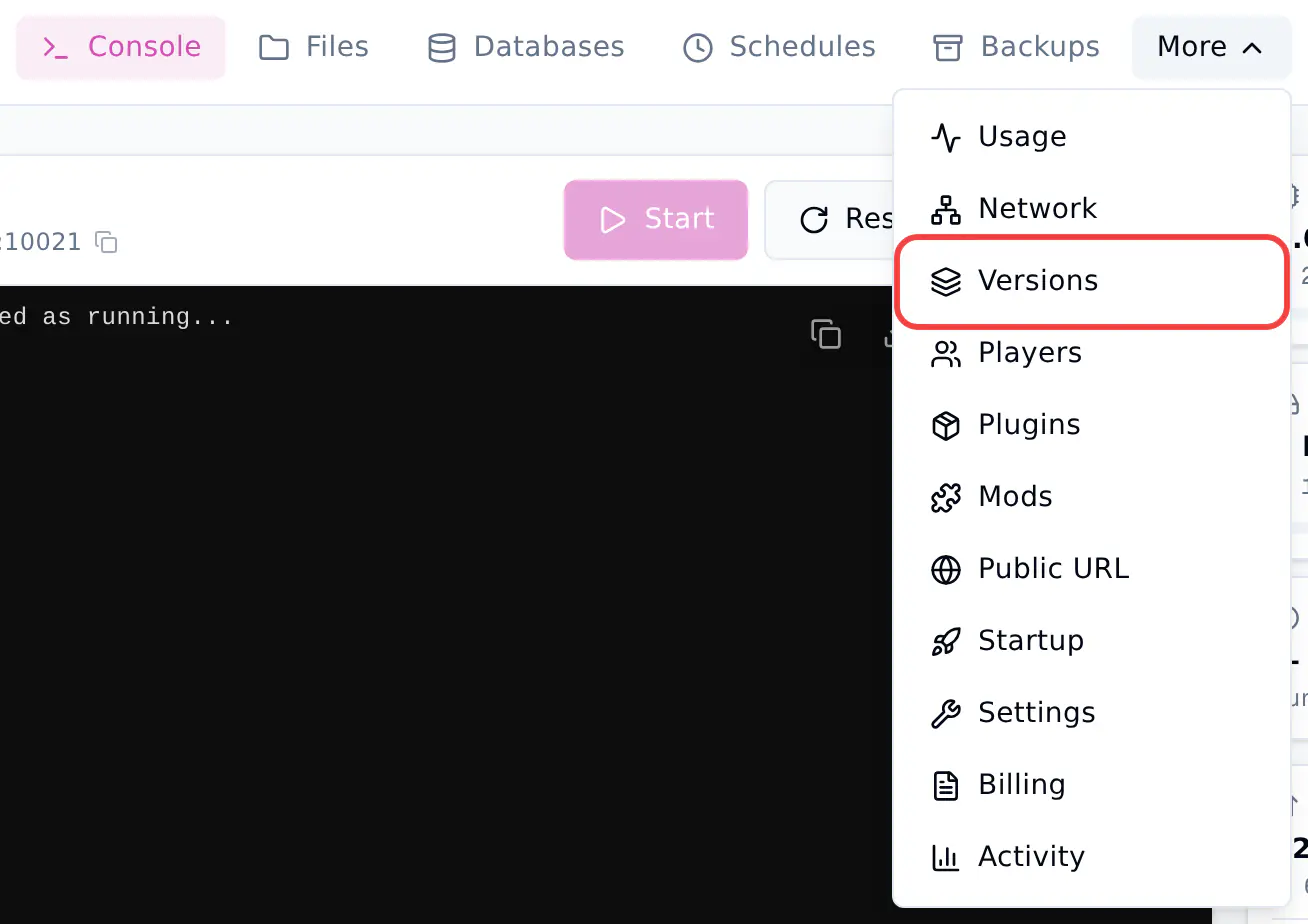
- In the top bar, click More, then click Versions.
Choose the server software
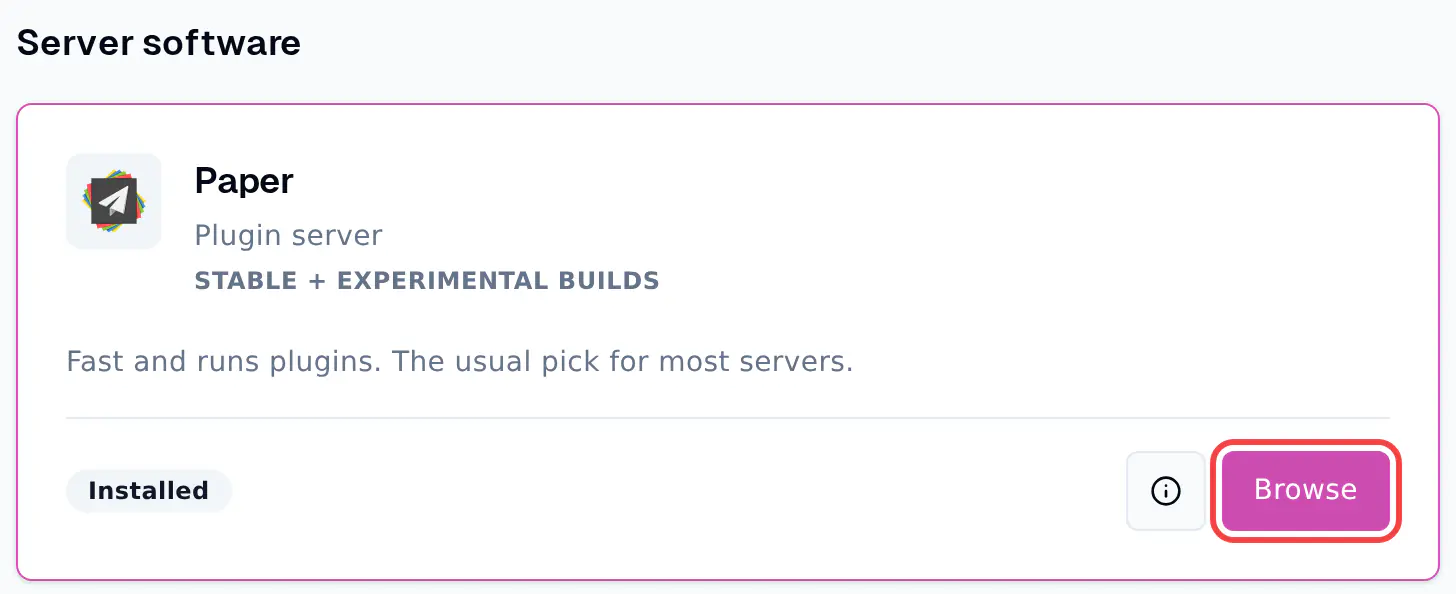
At the top you see what your server runs now. Below it, under Server software, are the options:
| Software | Use it for |
|---|---|
| Paper | Plugins. The usual pick for most servers. |
| Purpur | Paper plugins, with more settings and gameplay options. |
| Folia | Very large servers. Most plugins do not work on it. |
| Fabric | Fabric mods. |
| Forge | Forge mods and most big modpacks. |
| NeoForge | NeoForge mods. |
| Vanilla | The official Minecraft server, without plugins or mods. |
- Click Browse on the software you want. To stay on the same software and only change the version, click Browse on the card marked Installed.
Pick a version
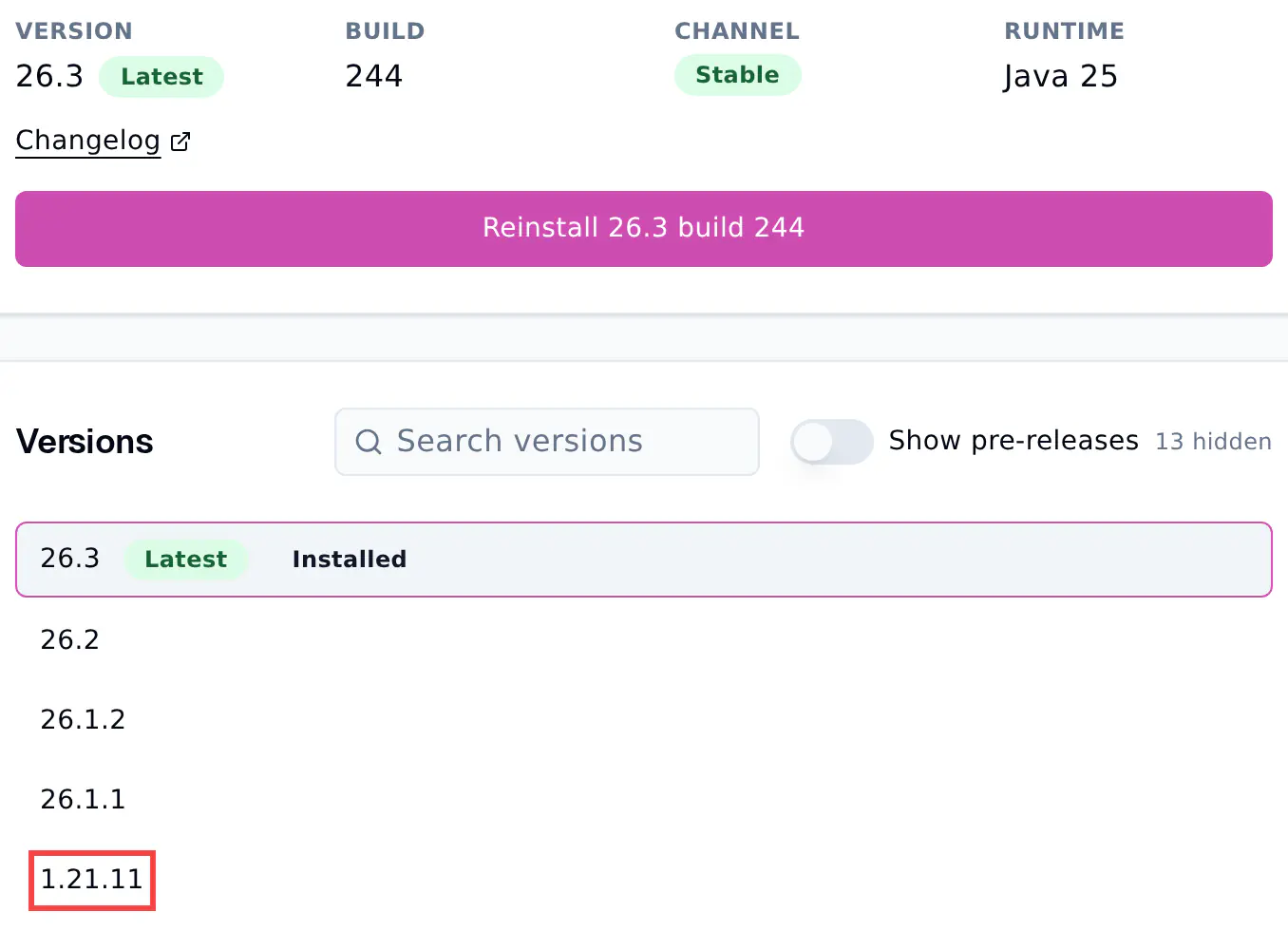
- Click the Minecraft version you want in the Versions list, for example
1.21.11. Use Search versions to find it faster.
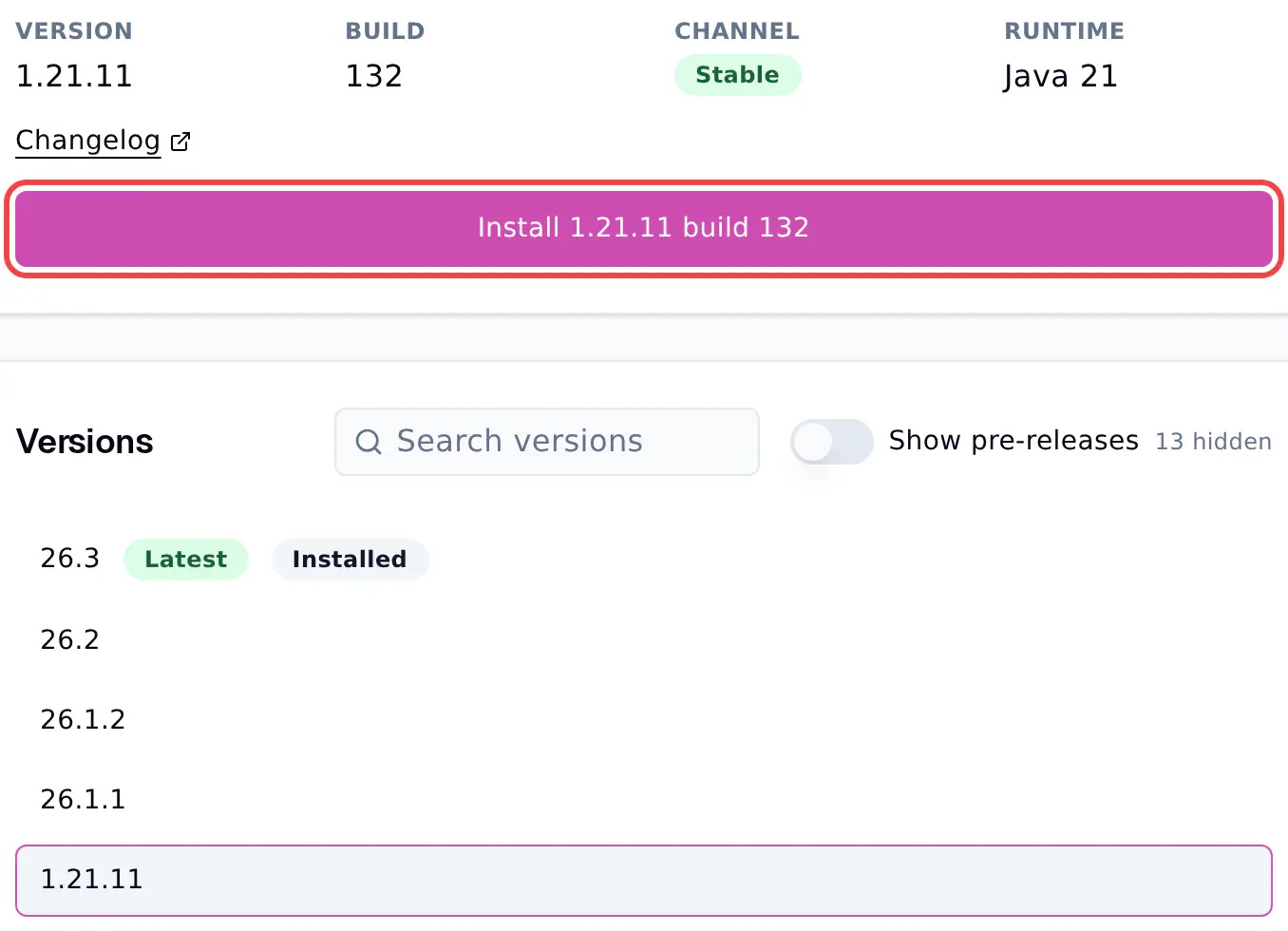
- Click the Install button at the top. It shows the version and the build you picked.
Confirm the install
The dialog shows What changes, and warns you when the switch can break your world, plugins or mods.
- Leave Remove old server files off, unless you know you need it. Your worlds and settings are always kept.
- Leave Start server after install on if you want your server to start by itself when it is done.
- Tick I have a backup, or I accept that my world, plugins or mods may not work after this. The Install button stays grey until you do.
- Click Install.
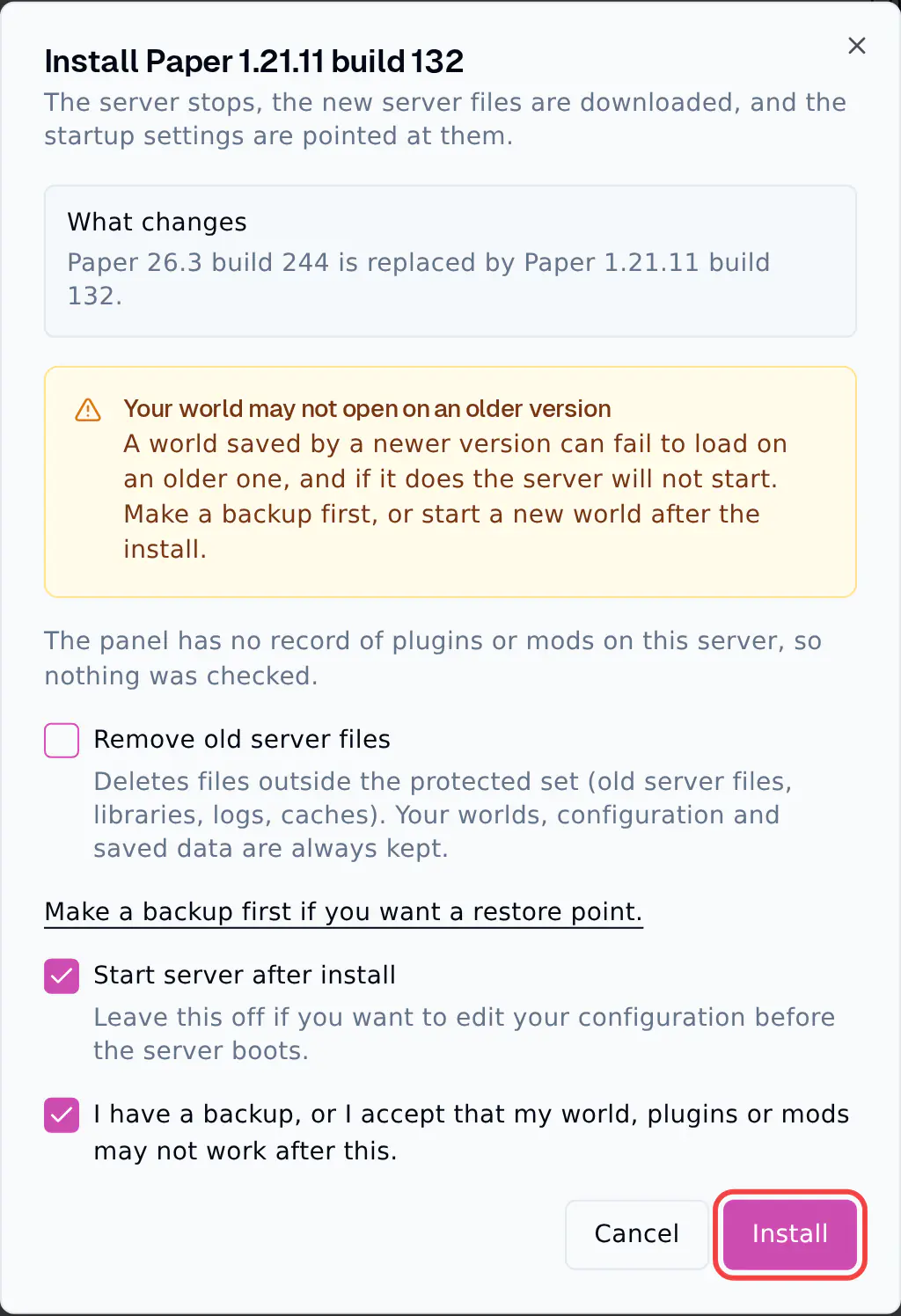
Your server stops and the new server files are downloaded. If Start server after install is on, the server starts again when it is done.
Tip
A world you open on a newer version cannot go back to an older version. Going to an older version, or to other server software, can stop your world from loading. The dialog shows a yellow warning when that can happen.
After the switch
- Check the Console for errors when the server starts.
- Plugins and mods are kept in their folders, but they may not work on the new version. Check them on the Plugins page. See installing plugins.
- Tell your players which version to pick in their Minecraft launcher.