
Every time your Python bot starts on FPS.ms, the server installs its packages with pip and then runs your code. You list the packages in a requirements.txt file, or type one or two into the Startup tab. This guide shows both ways and how to fix the errors you are most likely to see.
What happens when your server starts
Your server runs these steps in this order on every start:
- If the Additional Python packages field on the Startup tab is not empty, pip installs those packages.
- If
requirements.txtis in the main folder of your server, pip installs every package in it. - Your bot starts (
app.py, unless you changed the file name on the Startup tab).
These are the two pip commands the server runs:
pip install -U --prefix .local <Additional Python packages>
pip install -U --prefix .local -r requirements.txt
- No file, no error. If
requirements.txtis missing, step 2 is skipped without a message. Your bot then crashes when it imports a package that is not installed. -Umeans upgrade. A package without a version number is upgraded to the newest release every time the server starts. Pin your versions (see below) so a restart never changes your bot.- Packages go into
.local. After the first start you will see a.localfolder in Files. That is where your packages live. You do not need to touch it.
Step 1: Create requirements.txt
You can let pip write the file for you, or write it by hand.
Let pip write it
Open a terminal in your bot's folder on your computer, in the same Python environment where your bot works, and run:
pip freeze > requirements.txt
On Windows, use py -m pip freeze > requirements.txt. pip writes every package that is installed in that environment, with its exact version. If you run it outside a virtual environment, the file also lists packages your bot does not use. Remove those lines before you upload it.
Write it by hand
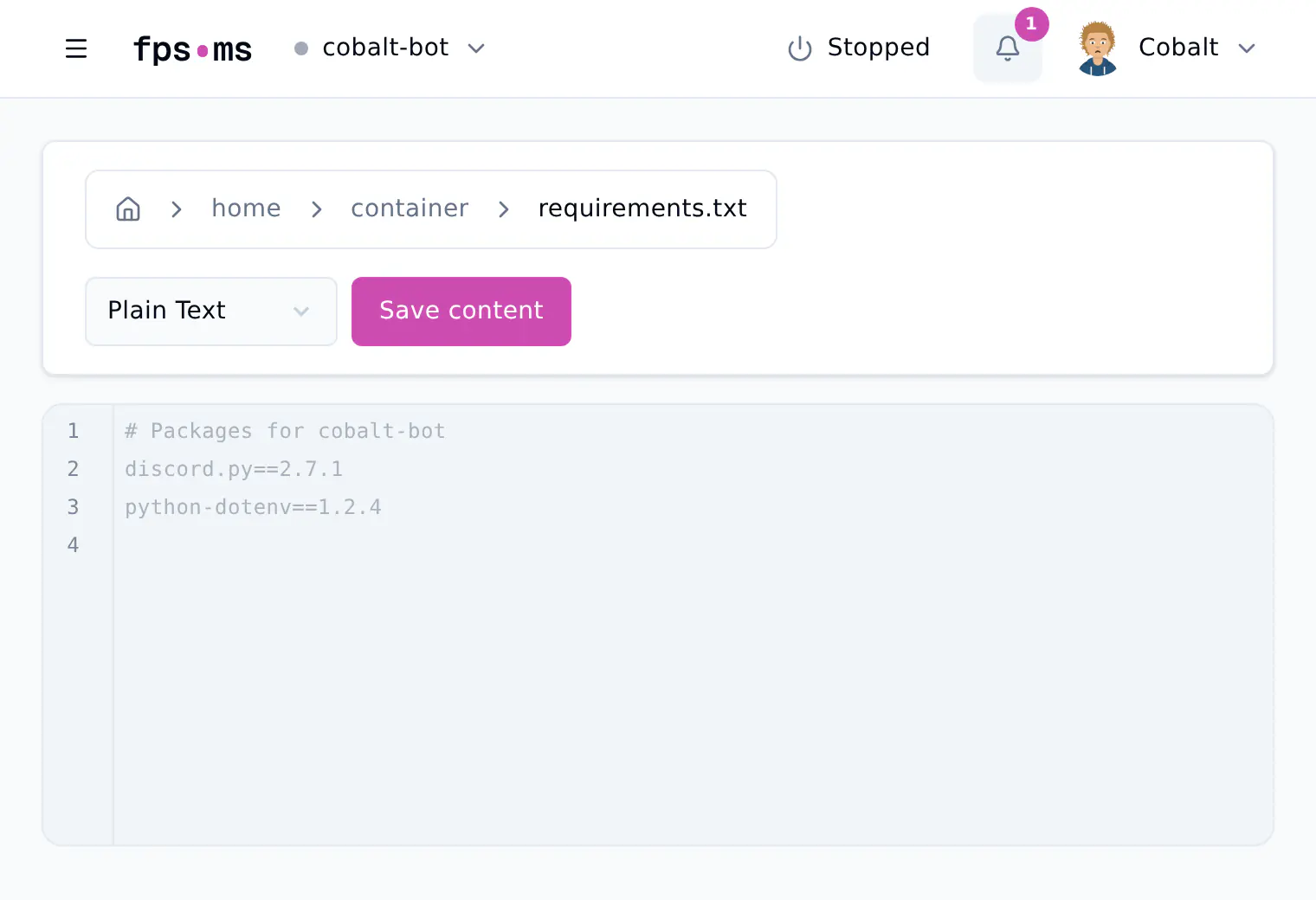
Put one package on each line. Use the package name from pypi.org, which is the name you would type after pip install. Here is the file Cobalt Works uses for its bot:
# Packages for cobalt-bot
discord.py==2.7.1
python-dotenv==1.2.4
The format rules:
- One package per line.
- A line that starts with
#is a comment. pip ignores it. - Do not put quotes around anything.
You choose the version with the part after the name:
| Line | What pip installs |
|---|---|
discord.py |
The newest version, upgraded on every start |
discord.py==2.7.1 |
Exactly version 2.7.1, every time |
discord.py>=2.6 |
2.6 or newer, upgraded on every start |
discord.py>=2.6,<3 |
2.6 or newer, but never version 3 |
Pin your versions
Use == for the packages your bot imports. Then a new release of a library can never break your bot after a restart. When you want a newer version, change the number yourself and test it.
Step 2: Upload it next to app.py
- Go to panel.fps.ms and click Manage on your bot.
- Click Files.
- Upload
requirements.txtinto the main folder, the same folder asapp.py. See uploading files or editing your bot code if you are not sure how.
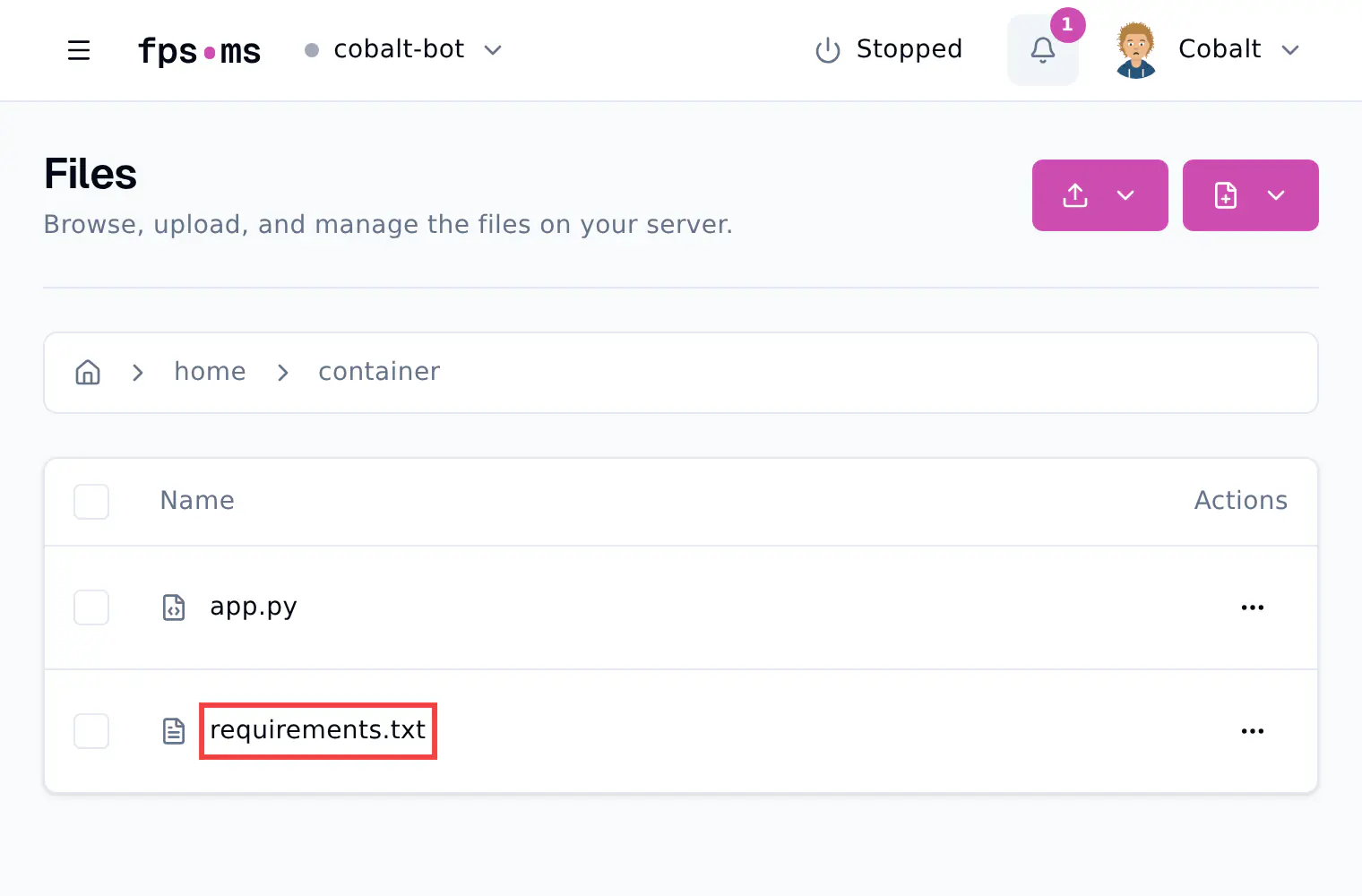
- To check or change the list later, click
requirements.txt. Edit the lines, then click Save content.
Main folder only
The server only reads requirements.txt from the main folder. A file inside a subfolder is ignored, unless you enter its path in the Requirements file field (see Use a different file name).
Step 3: Restart and read the console
- Click Console.
- Click Restart, or Start if your bot is offline.
- Watch the output. For each package, pip prints
CollectingandDownloadinglines. When it is done, it printsSuccessfully installedwith every package and version. Then your bot starts.
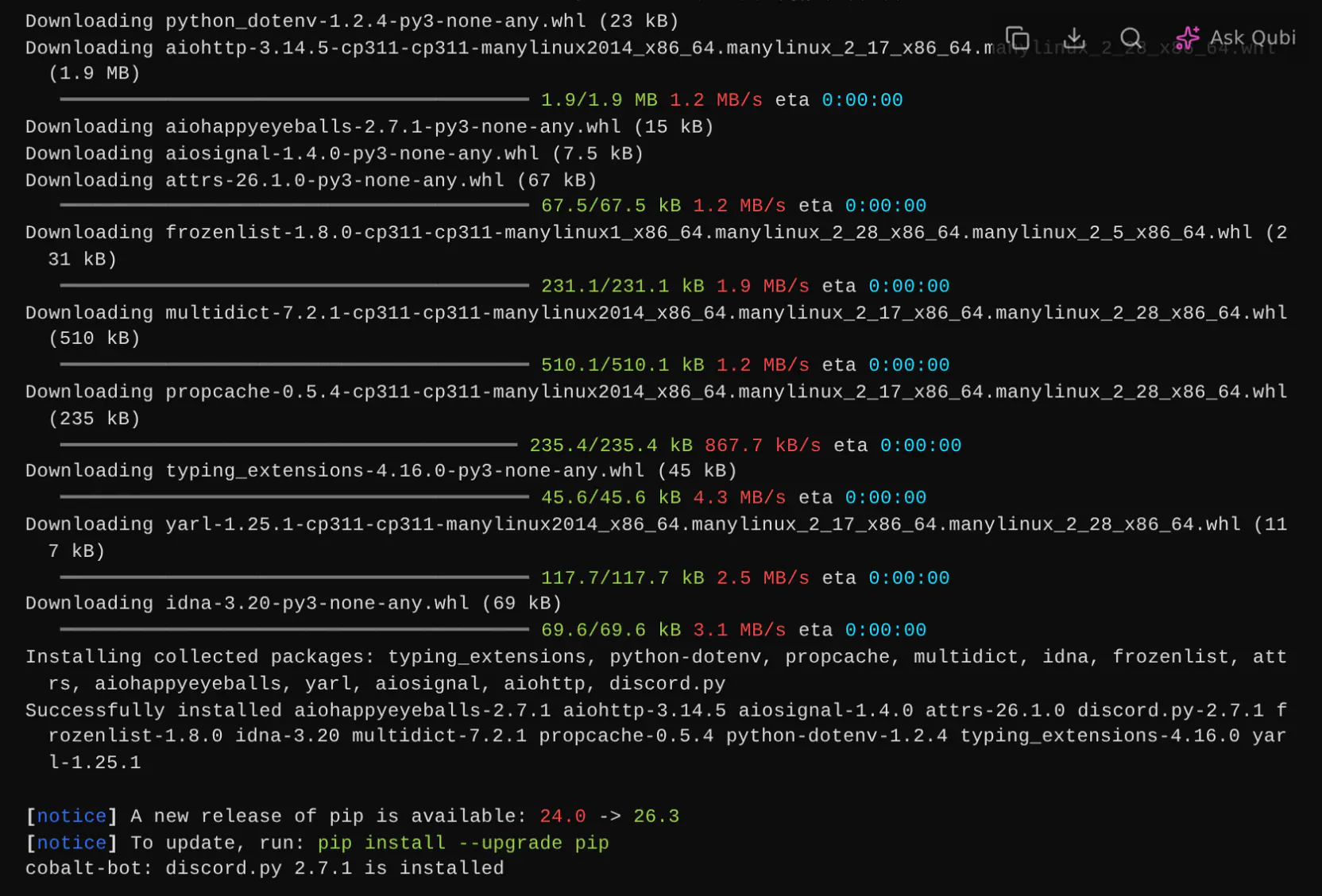
The first start takes longer because pip downloads everything. pip runs again on every start: pinned packages that are already installed are not downloaded again, and packages without a version are upgraded when a newer release is out.
A new release of pip is available
You can ignore this [notice] line. Your server's pip works fine, and you do not need to update it.
Add a package without editing the file
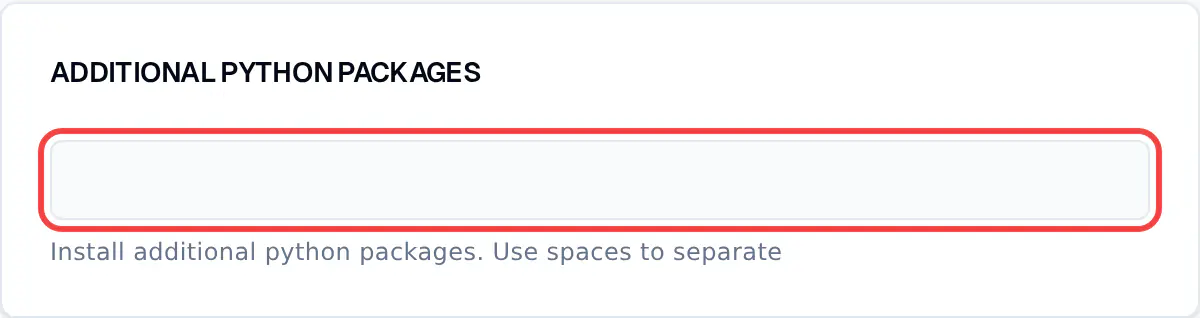
For one or two extra packages, you can use the Additional Python packages field instead of requirements.txt.
- Click Startup. If you do not see it in the top bar, click More first.
- Find Additional Python packages.
- Type the package names, separated by spaces. For example:
requests==2.34.2 pytz==2026.6. The field saves by itself while you type.
- Restart your server from the Console.
Pick one place per package
List each package either in this field or in requirements.txt, not in both. Removing a name from the field does not uninstall the package. It stays in .local.
Use a different file name
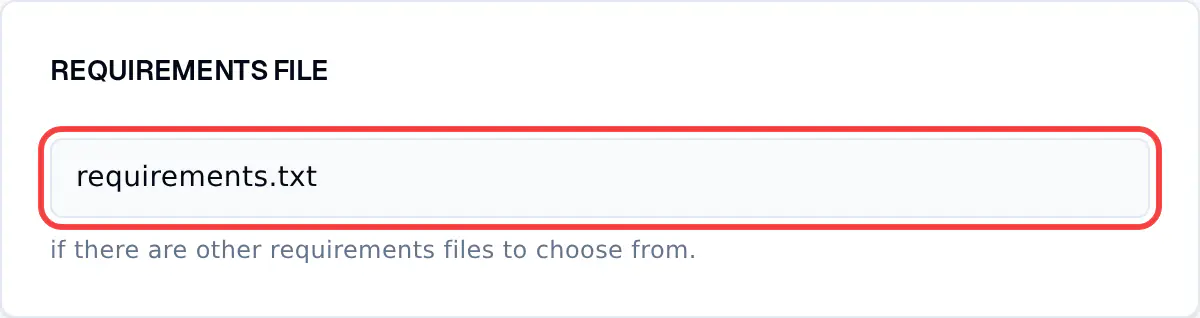
The server reads the file named in the Requirements file field. It is requirements.txt by default. Change it if your file has another name or sits in a subfolder.
- Click Startup (under More if it is not in the top bar).
- In Requirements file, type the file name or its path from the main folder, for example
requirements-bot.txtorbot/requirements.txt. Capitals matter:Requirements.txtis not the same file asrequirements.txt.
- Restart your server from the Console.
Common errors
ModuleNotFoundError: No module named '...'
ModuleNotFoundError: No module named 'dotenv'
Your code imports a package that was never installed. Check these three things:
- The package is in
requirements.txt, under its name from pypi.org. - The file is in the main folder, next to
app.py. - The file name matches the Requirements file field exactly.
The name on pypi.org is not always the name you import:
| Your code says | Add this line |
|---|---|
import discord |
discord.py |
from dotenv import load_dotenv |
python-dotenv |
If pip prints nothing at all before your bot starts, the server did not find your file. Restart after every fix.
No matching distribution found
ERROR: Could not find a version that satisfies the requirement discrod.py (from versions: none)
ERROR: No matching distribution found for discrod.py
pip could not find what you asked for. The text in brackets tells you why:
(from versions: none): the package name is wrong. Herediscord.pyis misspelled. Search for the package on pypi.org and copy the name from there.- A list of versions: the name is right, but the version you pinned does not exist. Pick a version from the list.
- A line above it that says
Ignored the following versions that require a different python version: the package needs a newer Python than your server runs. Choose a newer Python under Runtime Version on the Startup tab, or pin an older version of the package.
Conflicting dependencies (ResolutionImpossible)
ERROR: Cannot install -r requirements.txt (line 2) and aiohttp==3.7.0 because these package versions have conflicting dependencies.

The conflict is caused by:
    The user requested aiohttp==3.7.0
    discord-py 2.7.1 depends on aiohttp<4 and >=3.7.4
Two lines in your file ask for versions that cannot be installed together. Here discord.py 2.7.1 needs aiohttp 3.7.4 or newer, but the file pins aiohttp to 3.7.0. To fix it:
- Read the lines under
The conflict is caused by:. They name the package both sides want. - Remove the pin on that package (here, delete the
aiohttp==3.7.0line) or change it to a version both sides accept. - Restart.
Pin what you import, not everything
pip freeze pins every package, including the ones your packages need. If you later change one version by hand, the others can clash with it. A short file with only the packages your bot imports leaves pip free to pick matching versions for the rest.